Friday, 10 July 2015

10 BEST ANDROID PHONES UNDER 15000 RS (JULY 2015)

Looking to buy a good phone around 15,000 Rs? Then it can be a very tedious task as it’s the most confusing price range where you have to choose among the good international brands or the powerful specs from Indo-Chinese brands. To ease out your confusion, I have written the latest ranking of 10 Best Android Phones under 15000 Rs. for the month of July. Read it and compare the phones and choose the best one for you.
Every month hundreds of readers of this blog comment and ask me which phone they should choose among the crowded market. Which has made me even better understand the requirements and view-point of the buyers. So I am trying to make this list even easier for you by giving you appropriate information. You are always welcome to ask your queries.

1. Asus Zenfone 2 ZE551ML (2GB RAM):

The Zenfone 5 was a hit! Looks like that piece of success has given Asus the perfect sense of market demand. I am saying this because the newly launched Asus Zenfone 2 series is excellent and pretty much delivers everything that a user desires – Good Performance, Camera, Battery Life, Design, Latest Android and an overall good User Experience. Well, the Zenfone 2 is quite well-known for its 4 GB RAM but it starts from19,999 Rs. but at under 15k we have got the Zenfone 2 ZE551ML with 2GB RAM (details about other variants here). It runs on Quad Core, 64-bit, 1.8 GHz Intel Atom Z3560 processor which is very powerful. It sports a 5.5 inches Full HD display which is very good and it is also protected with Corning Gorilla Glass 3. The phone has a 13 MP rear & 5 MP front camera, the picture quality of both the cameras is very impressive. They are bright & colourful. It allows FHD video recording & produces good quality videos. It also has Dual-LED Flash and many other features. It runs on the Android v5.0 Lollipop with Asus’s ZenUI running on top of it. It supports Dual Sim & 4G (LTE). It is good on storage and has a good 3000 mAh battery with fast charging feature. When it comes to design, the phone looks very good and more importantly it’s different from other phones in the market. Overall, the Zenfone 2 at this price is a perfect all round device.
asus_zenfone_2_ze551ml_2gb_ram - Best Android Phones under 15000 Rs
PRICERs 14,999 @ 
OSAndroid OS, v5.0(Lollipop)
CPUQuad Core, 64-bit, 1.8 GHz Intel Atom Z3560 processor
RAM2 GB RAM
SCREEN5.5 inches, IPS capacitive touchscreen, Corning Gorilla Glass 3
DISPLAY1920 x 1080 pixels, 403 ppi pixel density
SIMDual SIM (GSM + LTE)
CAMERAPrimary Camera: 13 MP, Secondary Camera: 5 MP, Flash: Dual-LED Flash
MEMORYInternal Storage 16 GB, microSD Expandable upto 64 GB
BATTERYNon-removable Li-Po 3000 mAh battery
OTHERS3G, 4G, Bluetooth, WiFi, GPS, NFC


2. Samsung Galaxy S4:

“Exclusivity is all black” that’s what Samsung says when it slightly relaunched the Galaxy S4 with the Premium Note Series leather back panel and further slashed the price of the Samsung Galaxy S4 to just 15,999 Rs. With the all new back panel the phone now looks beautiful than ever and also feels much better. Most of you may have heard about this phone as it is among the most popular gadget in the history of Samsung. It’s a great performer with good hardware too. It’s the world’s first Octa Core Processor phone. Its old now but only on paper, when you will use this phone, you will feel it is fresh, energetic and powerful. It has got the latest Android Lollipop update which made the phone even more exciting. It has got great performance, camera, display and battery life. The reduced price of the S4 with all the exciting flagship features, makes the phone very attractive choice. Overall, it has got very powerful hardware and it is the perfect blend of user experience, features & design. Not to forget that after buying a Samsung phone, you can rest assured to get the best after sales service even if you live in smaller cities. So, we can call it the perfect phone at this range for most people. At this price, we have got another very very good Samsung phone – the Samsung Galaxy Grand Max. The Grand Max has amazing 13 MP rear and 5 MP front cameras. The phone has got a refreshing back panel and it is good in all the departments and has grown very popular. So, it can be a choice for you if you want a better front camera phone from Samsung.
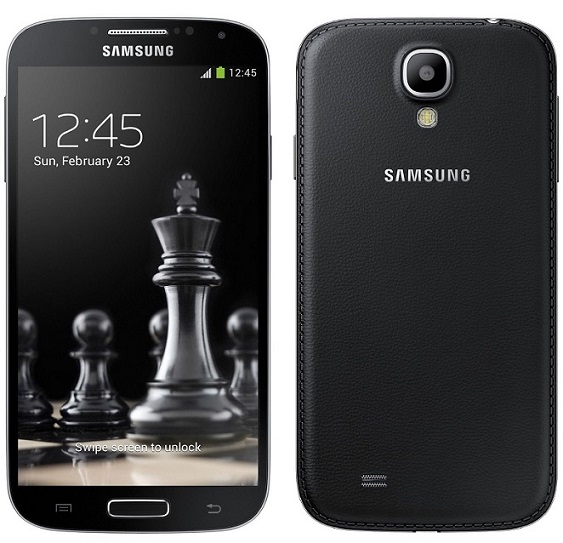
Samsung-Galaxy-S4-New - Best Android Phones under 15000 Rs
PRICERs 15,999 @ 
OSAndroid v4.4 KitKat OS, (upgradable to v.5.0 Lollipop)
CPU(Octa Core) Quad-core 1.6 GHz Cortex-A15 & Quad-Core 1.2 GHz Cortex-A7 Processors
RAM2 GB RAM
SCREEN5.0 inches, Super AMOLED capacitive touchscreen with Corning Gorilla Glass 3
DISPLAY1080 x 1920 pixels, 441 ppi pixel density
SIMSingle Sim (Micro-SIM)
CAMERA13 MP Primary Camera, Secondary Camera: 2 MP
MEMORYInternal Storage 16 GB, microsd expandable upto 64 GB
BATTERYLi-Ion 2600 mAh battery
OTHERS3G, NFC, Bluetooth, WiFi, GPS


3. Xiaomi Mi4 (16 GB):

“Power” & “Simplicity” are the two words which describe the Mi4 entirely. It runs on the very popular and very powerful Snapdragon 801 Processor which was used in almost all the last generation flagship phones. To make the performance even greater it has got 3 GB RAM. So, there is no need to describe the performance, you yourself can imagine how fast and fabulously it will perform. It sports a 5 inches Full HD display which is also pretty good and bright. The things we should discuss in details is the camera performance of the phone. It has got the Sony IMX 214 CMOS sensor which is quite advanced. The camera quality is pretty good, it is capable of recording 4K videos, the Autofocus of the phone is pretty fast (0.3 Seconds) and decent and works quite well. The camera works quite well at night also, it has High Dynamic Flash which takes two photos one with flash and one without flash and then mixes the colors in both the photos so, the image gets natural colors. The 8 MP front camera is equally good. The battery life of the phone is good. Its design is simple but the metallic bezels gives it a premium and stylish touch. It runs on the custom Android skin of Xiaomi which is the MIUI V6 and is quite beautiful. The Infrared blaster in the phone might be quite useful to control TV, AC, etc. Overall, it’s the beast of the phone and is certainly a great choice for camera lovers or power-hungry users but it has two downsides also – it is a single sim phone and there is only 16 GB storage which can’t be expanded. If you like the Mi 4 but dual sim is a must you can also buy a refreshed version of it – the Xiaomi Mi 4i which comes with dual-sim but still lacks microSD slot.
Xiaomi Mi4 - Best Android Phones under 15000 Rs
PRICE16 GB - Rs. 14,999 @             64 GB - Rs. 19,999 @ 

16 GB - Rs. 14,999 @             16 GB - Rs. 14,999  @ 
OSAndroid v4.4.4 (KitKat), Planned upgrade to Android v5.0 Lollipop
CPUQuad-core 2.5 GHz Qualcomm MSM8974AC Snapdragon 801 Processor
RAM3 GB RAM
SCREEN5.0 inches, IPS LCD capacitive touchscreen
DISPLAY1080 x 1920 pixels, 441 ppi pixel density
SIMSingle Sim (Micro-SIM)
CAMERARear Camera: 13 MP, Front Camera: 8 MP, LED Flash: Yes
MEMORYInternal Storage 16/64 GB, microsd unexpandable
BATTERYNon-removable Li-Ion 3080 mAh battery
OTHERS3G, Bluetooth, WiFi, GPS


4. Lenovo P70:

Smartphones have evolved much but not their battery life. If you forget to charge your phone in the night, the moment you realize this fact the next morning before leaving for the office, it breaks panic and havoc, you madly run-over to the charging point to save your phone from dying. Well there has to be a phone which can assure you, you aren’t a criminal if you forget to charge your phone and it can still run through your day. It’s not like that there haven’t been 4,000 or 5,000 mAh battery phones but, those phones only focused on the battery whereas a user wants all the features and specs of the top phones with exceptional battery. The Lenovo P70 is the exact one with a 4,000 mAh battery and great features. It runs on the Octa-core 1.7 GHz Mediatek MT6752 Processor coupled with 2 GB RAM, which ensures good performance. It has a 5 inches HD display which is decent, very good 13 MP & 5 MP cameras, Android v4.0 kitkat, dual sim, 4G and 16 GB internal storage which is expandable upto 32 GB. Overall, if battery is your concern, this can be a great choice.
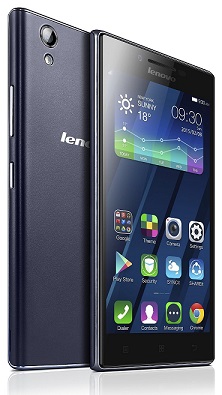
Lenovo P70 - Best Android Phones under 15000 Rs
PRICERs.  13,942  @  Rs.  @  Rs. 13,874  @ 
OSAndroid OS, v4.4 (KitKat)
CPUOcta-core 1.7 GHz Mediatek MT6752 Processor
RAM2 GB RAM
SCREEN5.0 inches, IPS LCD capacitive touchscreen
DISPLAY720 x 1280 pixels, 294 ppi pixel density
SIMDual SIM
CAMERAPrimary Camera: 13 MP, Secondary Camera: 5 MP, Flash: YES
MEMORYInternal Storage 16 GB, microSD expandable upto 32 GB
BATTERYNon-removable Li-Po 4000 mAh battery
OTHERS3G, 4G, Bluetooth, WiFi, GPS


5. HTC Desire 626G Plus:
Beautiful!!! This is the feeling you get when you first see the phone. The newly launched HTC Desire 626G Plus carries forward the new design trend of the mid ranged HTC devices like the Desire 826. The phone’s design is awesome and you can fall in love with it instantly. It’s not only beautiful from outside but the HTC Sense UI is also pretty beautiful. The phone is also good when it comes to the hardware which runs the phone. It sports an Octa-core 1.7 GHz Cortex-A53 Mediatek MT6752 Processor and 1 GB of RAM which runs the phone very smoothly. It has 5 inches HD screen and the display quality is very good. In the HTC Desire 626G Plus, HTC has increased the camera from 8 MP in the Desire 620 to 13 MP rear camera, it also has a 5 MP front camera and both the cameras of the phone are very good. It supports dual sim but doesn’t have 4G (LTE) which its competitors are offering at the same price. It has decent battery life, 8 GB of internal storage which can be expanded upto 32 GB. One thing to note is that, the back of the phone is glossy so it attracts fingerprints easily. Overall, if you want a great design phone with good performance from among the top brands then this can also be a good choice. HTC also offers bigger 5.5 inches HTC Desire 816G Plus (Octa Core)it can also be a good choice if you want the design of HTC with a bigger screen.
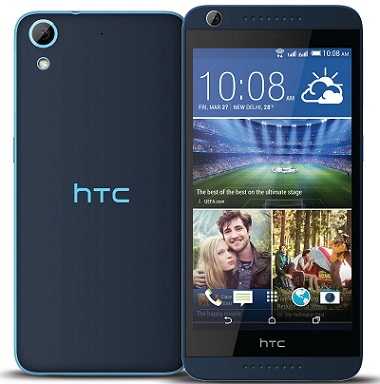
HTC Desire 626G Plus - Best Tech Guru - Best Android Phones under 15000 Rs
PRICERs.  15,690  @  Rs.  14,728  @  Rs.  @ 
OSAndroid OS, v4.4.4 (KitKat)
CPUOcta-core 1.7 GHz Cortex-A53 Mediatek MT6752 Processor
RAM1 GB RAM
SCREEN5.0 inches, Capacitive touchscreen
DISPLAY720 x 1280 pixels, 294 ppi pixel density
SIMDual Sim, GSM + UMTS
CAMERAPrimary Camera: 13 MP, Secondary Camera: 5 MP, Flash: YES
MEMORYInternal Storage 8 GB, microSD expandable upto 32 GB
BATTERYLi-Ion 2000 mAh battery
OTHERS3G, Bluetooth, WiFi, GPS


For Next Five Phones Click Here

Wednesday, 8 April 2015

9 Great Ideas For Managing Your Computer Files

 9 Great Ideas For Managing         Your Computer Files


managing computer files
It’s frustrating isn’t it when you can’t find that file? When you’ve searched every folder imaginable on your computer, and somehow it got lost….or worse, deleted. Now, there are excellent search tools for Windows that allow you to find your files, but they only work if you know the name of the file. And you don’t want to open up a program to find every file and folder that you need. It’s just nice to have things neat and easy to access whenever you need them.
I’ve put together a list of 9 things you can do to manage computer files and get the most out of your computer. Because that’s its purpose – to be more useful, not less useful. But computers are often more complicated in some ways when they’re not set up and used properly, which is essentially counterproductive.

Start Now — Don’t Put It Off

“This sounds complicated. I’ll do it later”. Don’t let that thought creep in, or you may as well not read the rest of this article. This is more of a “no excuses” tip than a technical idea, but like a lot of things, very little skill is needed to actually be organized and efficient. The biggest resource is time, but even that isn’t required. Instead of telling yourself “I’ll get to this later“, just quickly do it right there and then.
Of course, priorities are always important to keep in mind and this isn’t a time management article. However, it’s surprising how little effort it really takes just to start the process. The greatest resource it takes is just an overall consciousness to put this file or folder in the right place.
Ask yourself this – would you just throw a bunch of files or folders all over your desk at work or home? What about all over your living room, floor, bed, closet… need I continue? The answer is hopefully you wouldn’t. Your computer can be compared to your house. Not just your office or workspace — we do everything on our computers now so it’s important that everything is kept clean, just like your house.

Use Folders… Please!

Let me tell you about a man and his flash drive. He plugged it into my computer once and it didn’t have any folders, just files… lots of files. I’ve already explained why you should organize your files, so I’m pretty sure it’s clear why you need folders. But in case it isn’t, folders are the backbone of organization, but even if you have folders, you can still be very unorganized.
A folder that’s not properly labeled or is in the wrong place is just as bad, if not worse, than files all over your computer without a home (folder).

One Place For Everything

Don’t mistake this with for putting all your files in one folder… or even all your folders in one folder… or worse, the desktop. But you do need a place where you know that you can access your files and folders there. The My Documents folder is the logical and perfect place for this — but again, this isn’t a place for stuffing all your files, this is a home for your folders, which contain your files. Think of it in the sense that you wouldn’t put your folders in the yard, nor would you put your filing cabinet in the yard… you put both of them in the house. Your My Documents folder is your “house” of sorts.

Organize By Category

One way to organize your folders and files is by category, or type. For instance, let’s say you have documents for school, work, personal and professional (separate from work), as well as music, photos and movies. Obviously music, photos, videos and documents should all be kept separate, but organizing goes a step further. For example, you should also organize the types of documents that you have. There’s a couple ways to do this.
You could organize by file type, which I don’t recommend very much. Sure it’s better, but it’s not ideal. It’s mostly used for mass-organizing and “quick fixing” although there’s not much “fix” involved. This method could mostly be helpful if you’re going through things you no longer need at the moment and/or don’t care to get too detailed. It does have its place, and I have some files which I’ve organized this way, but it always leaves you knowing that you need to organize “those files”. For this reason, it’s not a method that I highly recommend — there are better ways.
managing computer files

You could also organize by what category the file is most relevant to. For instance, a school document should go into a school folder.
managing computer files folders

Organize By Date

Organizing by date is also helpful, but shouldn’t be used solely by itself. The reason being, if you ever perform a search for a file, you might find it in a folder labeled “04-11-2006″. If that’s all you have to go by, you will likely have to open the folder to look at its contents to see what is in it. It can get worse if you file all files this way and have all kinds of types intermingled with each other. Again, this isn’t very organized and perhaps worse than nothing at all.
If you feel adding a date is necessary (which I’ll often do for time sensitive files or files which are updated often, such as a resume), add a description with the date at the end or beginning, depending on your preference.

Don’t Overdo The Subfolders

Subfolders are a necessity to organizing files. It’s one of the great perks that a computer has over traditional filing cabinets. An example of a good use of subfolders would be having yourWork folder in My Documents, a Projects folder in the Work folder, “[Name of Project and Date]folder” in the Projects folder, and so on (if additional folders are needed).
managing computer files folders

However, be conscious of the number of folders within folders that you have because it can be a daunting task opening folder after folder looking for your files. If there are files that you know you need to quickly access, try to keep them only a folder or two away. Part of this has to do with the system that you are creating, have created or are just the most comfortable with, but it also must do with practicality and ease of access.

Naming Files And Folders: Short, But Precise

Another thing that is important to consider when you’re organizing your files is to be as brief as possible, but also as detailed as possible. For many cases, you might be the only one using the folders or files, but if you do decide to share something with someone, either on a personal or professional basis, you want it to be clear to them, as well as to you. You don’t want to have to think about what you were trying to describe in a folder title. Don’t name a folder “school stuff”name it “School” — notice the emphasis on capitalizing things, which also makes things look nicer.
Then under your school folder you can organize things by school (if there’s more than one). If you don’t have more than one school which you’ve attended you might name your folder“School: [Name of School].” If you want to abbreviate your school’s initials, that should be fine as you’ll likely know what they mean. However, be careful to not go overboard with abbreviations. Although they can be handy in keeping names short, the most important thing is that you understand what is in that file or folder.

Access Folders And Files Quickly

Like I was mentioning previously about make sure your files aren’t hidden deep in the Subfolder Forest, there are other things you can do to make your files easily accessible. Besides the obvious of being able to find a file quickly, it also plays a huge role in maintaining your file management status. In other words, it’s essential that you can quickly and easily save a new file to its correct spot on your computer.

Change Your View

In Windows Explorer there are numerous ways to view files. Along with viewing files in various icon sizes, there’s also a preview pane to see what the file looks like before opening it. You’re also able to sort your files by date, name, etc. This doesn’t directly correlate with managing files per say, but it allows for an overall better experience. What we’re aiming for is less work and more efficiency and how you view your files can do just that.
managing computer files folders

Another feature within Windows Explorer is the ability to add a folder to “Favorites.” If it’s a folder you access a lot, but isn’t a part of the set folders that Windows has dubbed your “favorite,” you can drag and drop folders into that section. Be careful not to drag the folder into another folder already in the favorites.
To ensure you actually have the folder in the Favorites section, look for the black solid line and a message saying “Create link in favorites.
organizing computer files

Jump Lists

Windows 7 has an awesome feature called “Jump Lists” which allows you to pin folders to the Windows Explorer pop-up icon near the Start button on the Taskbar. You can access this by right clicking and then choosing which folder to open. To add a new folder, simply grab it and drag and drop it onto the Windows Explorer icon in the Taskbar. Then you can move the folders around in any way you’d like.
organizing computer files

Organize Desktop Folders With Fences

In a previous article of mine, Clean Up Your Windows Desktop Once And For All, I mentioned both Jump Lists and Fences. Fences is an excellent program for organizing the folders that you do have on your desktop. I highly recommend checking out that article for a detailed glance into cleaning up your desktop too (which in many ways is managing your files, but in a different way). Although, I don’t like too many icons and shortcuts on my desktop, Fences provides a nice way to switch from icons to no icons with a simple double click.
Again, I only recommend having the essential folders on your desktop. If you access your folder with your resumes in it often, then go ahead and add it to your desktop and use Fences to hide the icons when you don’t need them. But in many ways, these folders could also be added to your Jump List and accessed with the same amount of time, clicks and effort.
With either of these options, you must be aware of what you are adding to make sure you don’t add too much and that you remove what you’re no longer using. Otherwise you’ll run into the same problem that you’re trying to fix right now — disordered chaos.

Archive What You Don’t Or Won’t Need

First, we must look at the term “archive“. It is not deleting files – you rarely want to do that (depending on the file). It is storing folders containing files in a designated folder titled “Archive” or “Old files”. Notice I said “folders containing files” as you don’t just want to throw a bunch of outdated files into a folder and call it good. That is just adding to the mess that you already have.
Now where should this folder go? Well, you probably don’t want it mingled with your other files, but that is entirely up to you. Personally I recommend still having it in the My Documentsfolder to keep things easy to remember and consistent. With a name like “Archive” it’ll likely be near the top of whatever folder you decide to put it in. To change this, you can add a “z” and a period to the beginning of the name, so the folder could look something like “z.Archive“. This will put it at the bottom of the list so you won’t have to worry about it being in the way all the time.

Remove & Refrain From Creating Duplicates

How duplicates get created often remains a mystery. Sometimes it’s by accidentally copying files to another location. Thankfully, there’s a free program that can help with removing duplicates of any kind from your computer. I’ve long used Duplicate Cleaner and highly recommend it. It gets recent updates, has an easy-to-use interface and just works.
organizing computer files

Don’t Make Copies, Make Shortcuts

To prevent future copies of files, it’s important to make shortcuts of files and folders, not copies. The difference between the two is that a copy is an exact replica of the first file or folder, whereas a shortcut simply leads to the file in the original location. Aside from not aiding in clutter as much, shortcuts also take up less space.
To make a shortcut, right click on the folder or file and click “Create Shortcut“. This will create a shortcut within that same location that the file is in. You can then take that shortcut, move it to whatever location you want and even rename it if you so desire. To create a shortcut of something on the desktop, right click and hover over “Send To” then click “Desktop“.

Prevent Clutter With Cloud-Based Note & Document Applications

There are things that you want to save, but it seems tedious to make an office document or text file and save it in a folder on your computer. Soon enough that folder becomes chock-full of all sorts of note-like documents and it becomes overwhelming to even look for a particular note. For this reason, cloud-based applications are consistently growing in popularity and there are many to choose from.
The ones I personally use extensively are Evernote and Google Docs. However, the ones that follow as runner up, in my opinion, are Springpad and Microsoft Web Apps.

The reason I feel that Evernote succeeds over Springpad is primarily because of its local application. You don’t need a web browser to use it, but yet you can access your files in the cloud. I prefer Google Docs over Microsoft Web Apps simply because it’s what I’ve developed my system around and more of my files are in it than Web Apps.
If you’re just starting (or still haven’t got settled in one or two programs, I recommend considering these four as well as any other similar apps and seeing which ones fit you best).

The reason I recommend using these applications over the traditional way of creating a document in Microsoft Word or another office alternative is because it allows you to organize, search and create your notes very easily. There is a plethora of articles on MakeUseOf, as well as the rest of the Internet, which show how to do that. Just as the title of this section implies, it keeps the clutter down on your computer.

Sync Your Local Files To The Cloud

Syncing your local files to the cloud is different from creating notes and documents in the cloud. This is one of the last steps as it is important that you understand all the previous steps first. If you don’t, syncing more files to the cloud can actually aid in the chaotic mess of files and folders. There are a lot of options in this area, but the big players are SugarSyncDropbox, Google Drive and Skydrive. Those are my personal favorites and I use them all, but there are so many others like Mozy, iDrive, and so on.
managing computer files

I highly recommend SugarSync for an overall backup of your computers folders to the cloud. For individual files, Dropbox, Google Drive and SkyDrive work very similarly. Whether you are a Google Docs fan or a Microsoft Web Apps fan may determine whether you use Google Drive or SkyDrive. Both are head to head and if you haven’t tried both, I recommend you do.
I like Dropbox for sharing files and SugarSync for backing up and accessing all of my documents on another Internet-connected device. I’ve set up SkyDrive to back up a lot of my other files on my computer and I use Google Drive to organize and add files to Docs without a web browser.

Stay Consistent & Prompt

This is one of the most important things to do. Once you start the process, you must continue it diligently otherwise it’s all for nothing and you will end up with a semi-organized-file-system. That’s not only non-productive, but it also reminds you that you never finished.
The key to this is to be prompt. The moment you need to save or create a file, you put it in the right spot and if there isn’t a spot for it yet, create one. Whether you do this in the cloud or locally, you need to remember all of the previous tips such as being brief, but detailed, refraining from making duplicates, and paying attention to folder hierarchy by organizing what makes sense, but not overdoing it by adding too many folders.

Conclusion

Remember the most important thing is to simply start. Don’t wait until you “have more time” – you’ll never have more time. Although right now may not be the best time to do a complete overhaul of all your files, you can still start making some folders and slowing start adding your new files that you save on your computer, whether they’re from downloading or creating. Time will allow you to then expand and focus more on your other files and getting them in order.
This was a lot of information to take in, I know, but if you have any questions, I’m more than happy to help. Have you created a system similar to that described above? How has it been working out for you? Is there anything you’d like to add or share with the readers for ideas that you have in managing computer files more efficiently?